
Appointments
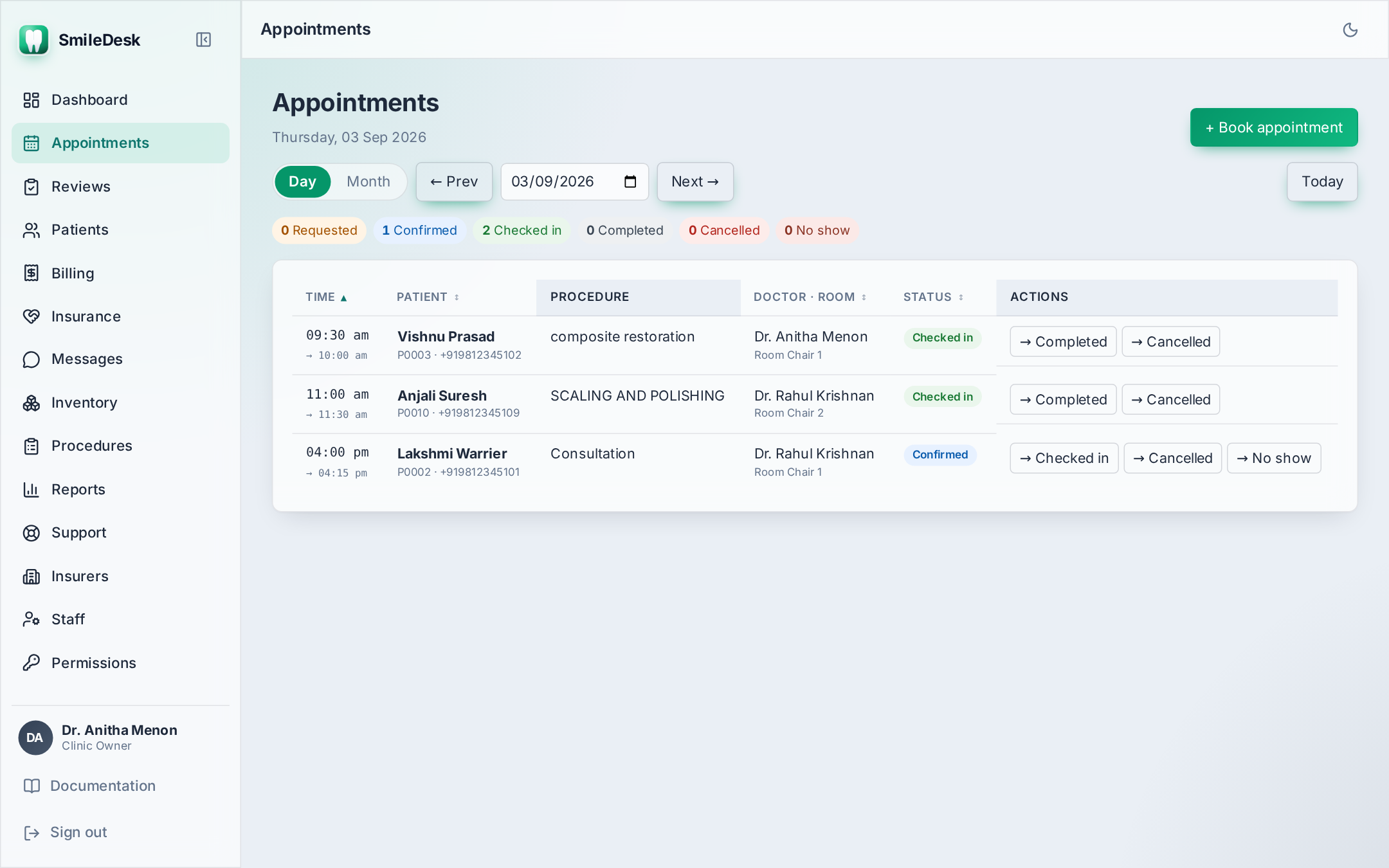
The day board is what runs the clinic. It shows every appointment for the chosen date, per chair, colour-coded by status, and lets you move a patient from booked to checked-in to completed with one click.
What it does
The Appointments screen is a two-dimensional grid: chairs across the top, time down the side (in IST). Each block is one appointment, showing time, patient name, procedure, doctor, and status. The count pills at the top tell you at a glance how many are Confirmed, Checked in, Completed, No show, Cancelled for the day.
The status flow
Every appointment moves through this state machine. Only the valid next steps are offered on-screen, so you cannot accidentally jump a patient from Requested straight to Completed.
requested   →   confirmed
confirmed   →   checked_in    |   cancelled   |   no_show
checked_in  →   completed     |   cancelled
completed   →   (terminal)
cancelled   →   (terminal)
no_show → (terminal)- Requested — arrived via the website booking widget or a WhatsApp form. Sitting in the queue, waiting for you to confirm.
- Confirmed — you have a chair and time. The WhatsApp confirmation goes out and a 24-hour reminder is scheduled.
- Checked in — the patient is at the clinic and in the chair.
- Completed — treatment done. Feeds the billing screen.
- Cancelled / No show — the reminder (if scheduled) is cancelled automatically.
Booking a new appointment
- Click New appointment on the day board (or press N).
- Search the patient by name or phone. If new, click Register from the same dialog.
- Pick a chair. Only chairs configured under Admin → Chairs appear.
- Pick a doctor. Any staff member with the Doctor role is available.
- Pick the start time (IST) and duration. SmileDesk warns you in red if the chair or the doctor is already booked in that slot.
- Pick one or more procedures from your catalogue. The duration defaults to the sum of your procedure defaults but is fully editable.
- Save. Status is Confirmed; WhatsApp confirmation is queued (if enabled).
Back-to-back is allowed. Chair conflict detection uses half-open intervals — an appointment ending at 10:30 does not conflict with one starting at 10:30. Only overlaps are blocked.
The requests queue
Appointments that come in via the website booking form or a public WhatsApp bot land as Requested. They appear both on the day board (grey) and in a dedicated Requests queue at the top of the Appointments page.
- Open the request. It has the name, phone and requested time.
- Click Confirm. Pick the chair, doctor and final time — reception can move the slot if the requested one does not work.
- If the patient is new, SmileDesk auto-creates the patient record from the request. If they already exist (matched by phone), the request is attached to the existing patient.
Chair-side chart
Once the patient is Checked in, the doctor can open the Chair-side chart — a single screen that shows the odontogram, medical history, current treatment plan and today's clinical note in one place, without leaving the appointment. Full details on the Clinical records page.
Rescheduling and cancelling
- Reschedule — open the appointment, click Reschedule, pick a new time. The confirmation and reminder jobs are re-issued for the new time; the old ones are cancelled.
- Cancel — open the appointment, click Cancel, add a short reason. The reminder is cancelled. A WhatsApp cancellation notice is NOT sent by default — most clinics prefer to call.
- No show — marked from the day board once the slot has passed. Counted in the no-show rate on Reports.
Common pitfalls
- Booking on the wrong date — the date header at the top is where you check. ← Today → arrow keys jump one day.
- Assigning the wrong doctor — a doctor gets a WhatsApp reminder every morning of their day's list. If it is wrong, the doctor knows before you do.
- Skipping "Checked in" — if you jump straight to Completed, the checked-in count on Reports stays zero and the arrival-to-completion time can't be computed.
- Two receptionists booking the same slot at the same second — the database rejects the second save with a clear error. Refresh and pick another time.
Have a workflow the day board doesn't quite handle?
Contact support →