
SmileDesk sends confirmations, reminders and invoices over WhatsApp through Pulse, our in-house Meta Business gateway. You use your own WhatsApp Business number, so patients see your clinic's name.
What it does
When an appointment turns Confirmed, a booking confirmation is queued. 24 hours before the start, a reminder is queued. When an invoice is issued and you click Send, a text-plus-PDF is queued. All of this goes through Pulse, and every send is logged in Messages.
What you'll see
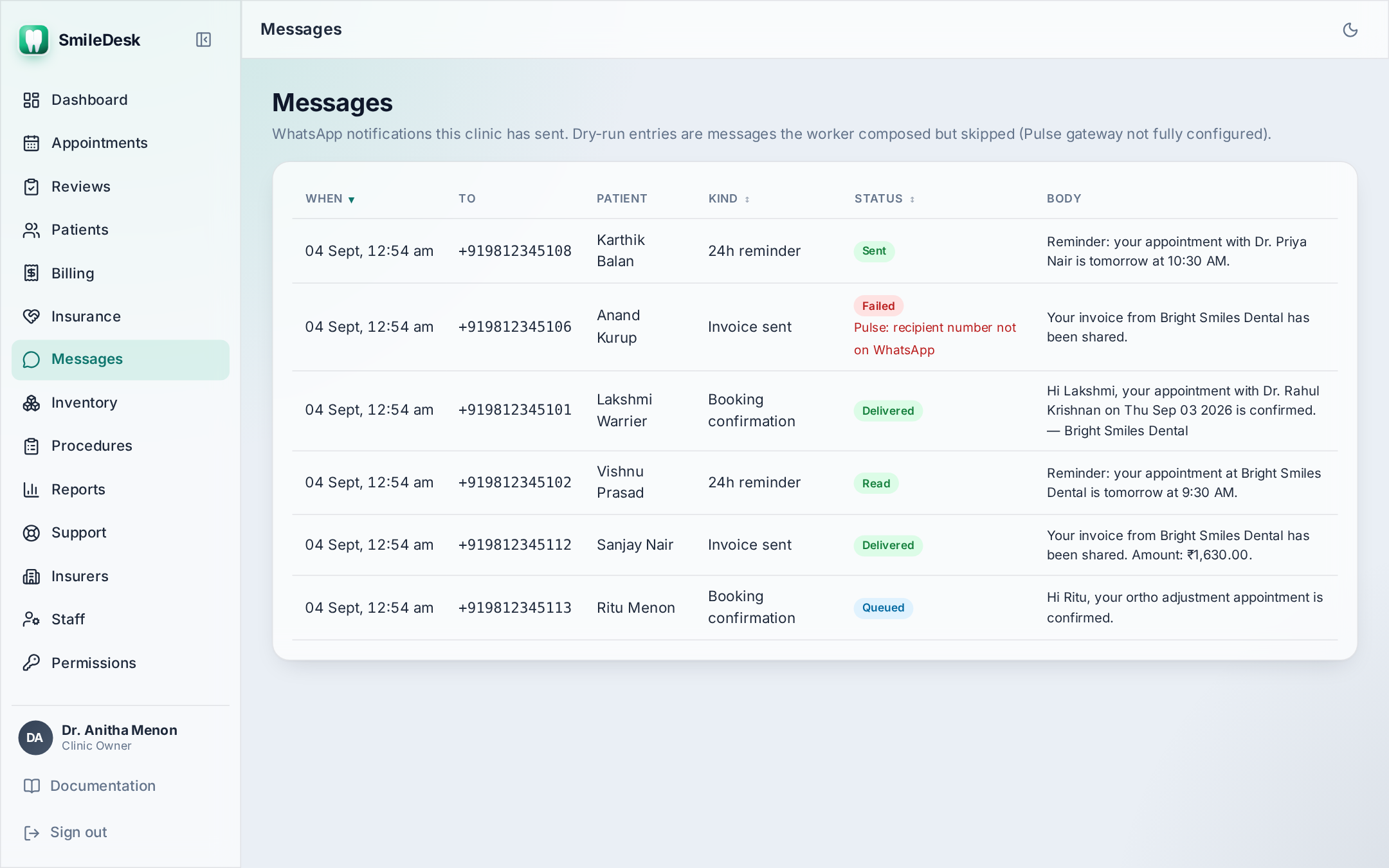
- Messages in the sidebar — the delivery log for your clinic: message, recipient, status, error (if any).
- A small WhatsApp icon on each appointment card showing the send status of the confirmation (sent / delivered / read / failed).
Pulse setup — one-time
You need a Meta Business Account and a phone number that is not already registered to personal WhatsApp. The whole flow takes 15 minutes if the number is ready.
- Open Admin → WhatsApp in SmileDesk. Click Connect Pulse. This opens Meta's Embedded Signup in a new window.
- Sign in with the Facebook account that owns your Business Manager.
- Pick (or create) your WhatsApp Business Account (WABA). Copy the Business Account ID.
- Add the phone number. Meta will send a 6-digit code by SMS or voice call — enter it in Pulse.
- Back in SmileDesk, paste the Business Account ID into Admin → WhatsApp → Business Account ID and click Save.
- Send a test message to your own mobile from the Send test button. If it arrives, you're live.
Number not receiving the code? WhatsApp requires the number to be OFFLINE from the WhatsApp/WhatsApp-Business app for 30 minutes before verification. Sign out of the app on any phone that has it.
Templates — the approval flow
WhatsApp requires every outbound message that is not part of an active conversation to use an approved template. SmileDesk ships four templates:
appointment_confirmation— sent on Confirmed.appointment_reminder— sent 24 h before start.invoice_send— sent on invoice send.recall_due— sent to patients whose last visit was > 6 months ago (opt-in).
They come pre-approved for the default English text. If you want them in Malayalam, Hindi or Tamil, or you want to change the wording:
- Open Admin → WhatsApp → Templates. Duplicate a template.
- Edit the text. Placeholders like
{{patient_name}}and{{appointment_time}}are auto-filled at send time. - Click Submit for approval. Meta reviews templates within 24–48 hours (usually 2–4 hours in practice).
- Once approved, activate it under the same screen. Sends switch to the new template on the next queued job.
Do not include prices in a template. Meta rejects promotional templates that quote money. Keep templates transactional; the invoice PDF is where the money goes.
Delivery status
Each message has a status. What the ticks mean:
- Queued — SmileDesk has accepted the job; Pulse is about to send.
- Sent — Meta has accepted the message.
- Delivered — the phone has received it (single tick / grey ticks).
- Read — the patient opened the chat (blue ticks). Only visible if the patient has read receipts on.
- Failed — with an error code from Meta. The Messages page shows the reason.
Common failure reasons
- 131 026 — recipient can't receive — no WhatsApp on that number.
- 131 047 — 24 h window expired — reply-only messages need an active conversation.
- 132 000 — template not approved — check your custom template's approval status.
Opting a patient out
If a patient asks not to receive WhatsApp, open their profile → Communication preferences → turn off WhatsApp. Confirmations, reminders and invoices will not be queued for that patient. This is a DPDP-friendly setting; log it in the visit note the day they ask.
Common pitfalls
- Using a personal number for the WABA — the number cannot be on personal WhatsApp at the same time. Get a dedicated SIM if needed.
- Editing an approved template — any text change re-submits the template for approval. It goes offline until re-approved.
- Ignoring failed messages — the Messages page collates them. A failed reminder is a possible no-show; call the patient.
- Assuming reminders are sent on Saturdays — they are, on IST. WhatsApp does not care about weekends.
WhatsApp not delivering, or a template stuck in review?
Contact support →