
Patients
The patient record is the spine of everything else — appointments, clinical notes, invoices and messages all hang off it. This page covers registering, searching, editing, and keeping medical history current.
What it does
The Patients screen holds every person your clinic has ever seen. Each row has a permanent P-code (P0001, P0002, …), a name, a mobile, and a bundle of optional demographics. From the profile page you can jump to the patient's clinical chart, their invoice history, and their WhatsApp thread.
When to use it
- New person walks in — register them before booking anything.
- Phone call for an appointment — search first; if found, you have their history in front of you as the call goes on.
- Details changed — new number, new address, allergy just diagnosed — edit right there.
- Attaching files — a scanned referral letter, an old x-ray, insurance card photo.
Registering a new patient
- Open Patients from the sidebar and click New patient.
- Fill Name and Mobile. These are the only mandatory fields.
- Add DOB, gender, blood group, alternate phone, address — anything the patient volunteers.
- Under Medical history, note conditions (diabetes, hypertension, cardiac history), allergies (especially to local anaesthetic, penicillin, latex), and current medications.
- Click Save. The next P-code is assigned automatically.
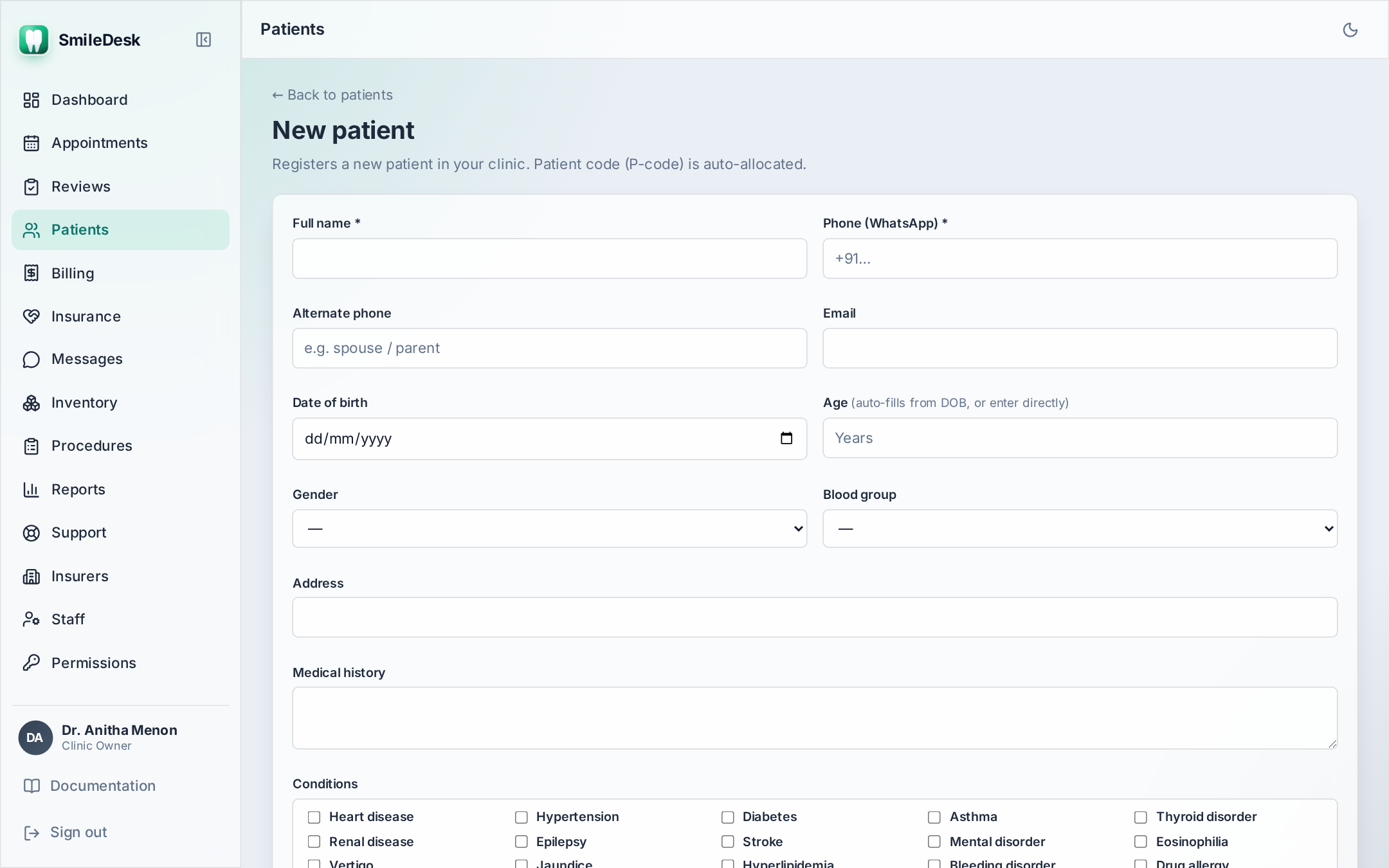
Phone format: +91 9xxxx xxxxx or a plain 10-digit mobile. Both work. Landline numbers are accepted in the alternate-phone field only.
Searching
The Patients list has one search box that matches on name, mobile, or P-code at the same time. Partial matches work — typing 9876 finds every patient whose number contains those digits. Typing P0042 jumps straight to that record.
Editing a patient
Open the patient's profile and click Edit. The same form appears, prefilled. All changes are logged in the audit trail with your name, the field, the before value, and the after value — see Audit log.
Medical history & alerts
Anything you put in the medical-history box shows as a small red banner at the top of the patient's clinical chart and above every invoice. Keep it short and factual — this is what the doctor scans in three seconds before starting a procedure.
Good entries:
Diabetic (metformin 500mg BD)Allergy: penicillin (rash)On warfarin — INR check before extraction
Less useful:
Sometimes has stomach acheWas told by another dentist to be careful
Files
Attach scanned documents, referral letters, insurance cards, older x-rays, before/after photos. Files are stored per patient. Supported types: JPG, PNG, PDF up to 10 MB each.
- Open the patient profile.
- Scroll to Files and click Upload.
- Add a short description ("Referral from Dr. Menon, 12 Aug 2026").
- Save. The file is available to any staff member with
patients:read.
Deleting a patient
Deleting is meant for mistakes — a duplicate or a test entry created by accident. Staff with the patients:delete permission can delete a patient from the Patients list, but only while the record is still empty.
Once a patient has an invoice, an appointment, or a clinical note, SmileDesk refuses the delete and tells you why. DPDP and clinical-record retention rules make hard-deleting real treatment history risky, so those records stay.
Common pitfalls
- Two records for the same person — always search by phone first. If a duplicate slips in, delete it straight away, before anyone books an appointment or writes a note against it. After that it can no longer be deleted.
- DOB missing — age is derived from DOB. If DOB is blank, the odontogram assumes an adult (permanent dentition). Fill in DOB for children to get the primary-teeth layout.
- Medical history in the wrong field — allergies do NOT go in the address box. Sounds obvious, happens weekly.
Something in the patient record not behaving as you expect?
Contact support →